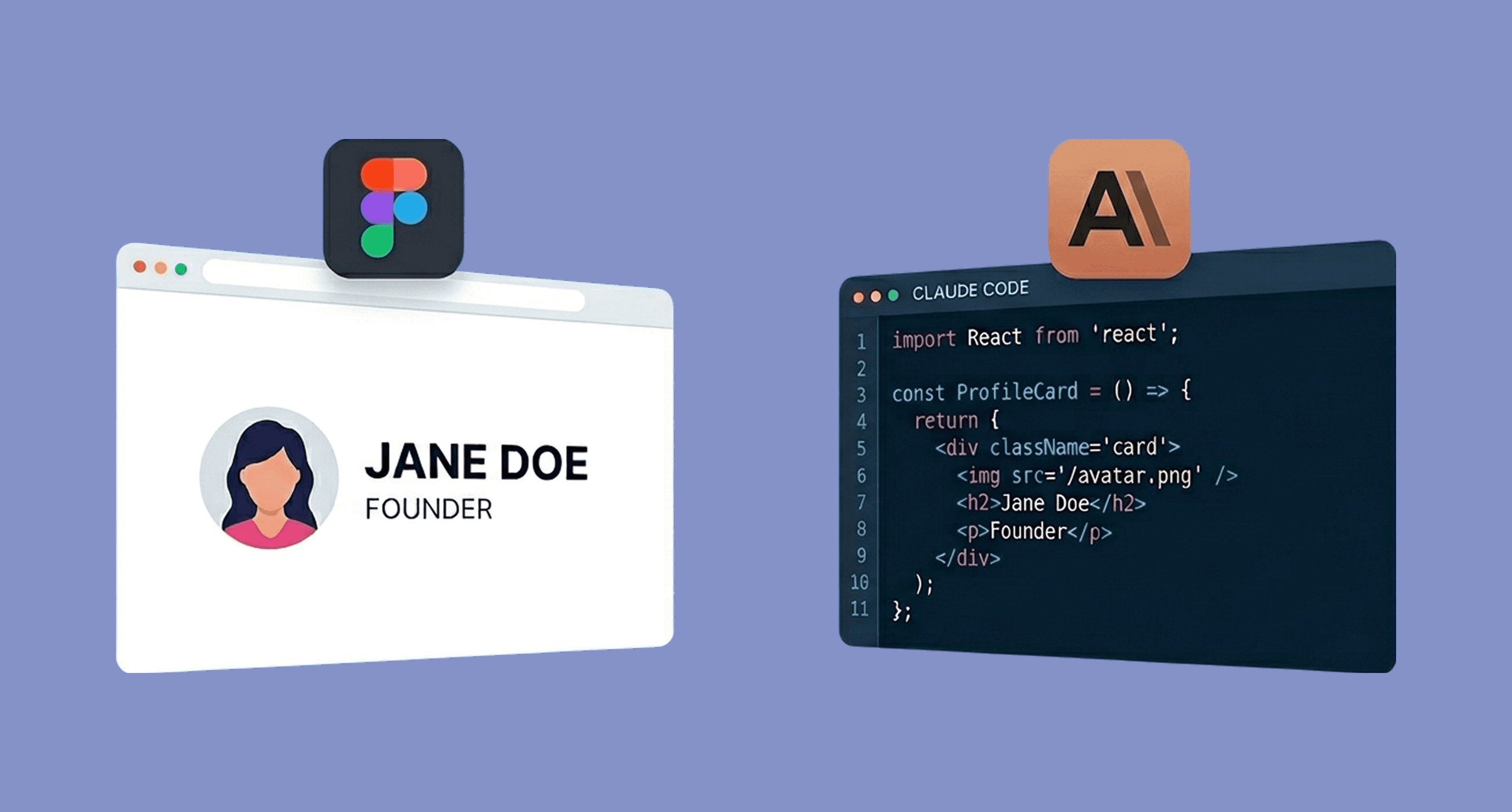
You’ve finished the Figma file. Every screen is there, every state is covered, the prototype clicks through cleanly. And now it sits in a backlog waiting for an engineer to have time for it.
That gap, between a finished design and a working product, is what this guide closes one piece of. Claude Code, connected to Figma through the Figma MCP server, is the part of the process that reads your actual file, not a screenshot of it, and turns it into real, working code. It’s one stage in a longer pipeline, not the whole thing, more on that at the end, but it’s the stage worth understanding first.
This guide walks through setting that connection up and using it properly.
What the Figma MCP server actually does
MCP stands for Model Context Protocol. Don’t worry about the acronym, what matters is what it does here: it gives Claude structured access to your Figma file. Components, variables, layout, spacing, the actual design tokens, not just pixels.
Without it, your only option is screenshotting a frame and asking an AI to guess at the structure. With it, Claude can read the real component hierarchy and produce code that actually reflects how the file is built. This is the difference between an AI approximating your design and an AI reading it.
What you need before you start
The Figma desktop app, or a Figma account if using the remote server
Claude Code installed on your computer
A Figma file you have edit or dev access to
There are two ways to connect them: the remote server (works through your Figma account, no desktop app required) and the desktop server (runs locally through the Figma desktop app). For most people starting out, the remote server is the simpler path because setup happens entirely through Claude Code’s plugin system, and either route gets you to the same Claude Code Figma workflow once it’s connected.
The walkthrough: remote Figma MCP server
This is the route Figma itself recommends for most users.
Step 1: Install the Figma plugin for Claude Code.
Open your terminal and run:
Step 2: Restart Claude Code if it was already running, so the new plugin loads.
Step 3: Open the plugin marketplace.
Type /plugin and press Enter.
Step 4: Navigate to the Installed tab.
Use the arrow keys to move across, then find the figma server in the list and press Enter to start authorisation.
Step 5: Authenticate.
Press Enter again, a browser window opens. Click Allow access to connect Claude Code to your Figma account.
Step 6: Confirm the connection.
Back in the terminal, run /plugin again. The Figma server should now show as connected under Installed.
That’s it. Claude can now read any Figma file you have access to.
The walkthrough: desktop MCP server (alternative)
If you prefer working through the Figma desktop app directly:
Open the Figma desktop app and make sure it’s on the latest version.
Open the design file you want to work from.
With nothing selected on the canvas, switch to Dev Mode using the toggle in the toolbar.
Enable the MCP server from the right sidebar. Figma confirms it’s running and gives you a local address, typically
http://127.0.0.1:3845/mcp.In your terminal, connect Claude Code to it:
Restart Claude Code so the connection takes effect.
The desktop server is the one to use if your organisation requires local-only access rather than going through Figma’s remote infrastructure.
Using the connection: from frame to code
Once connected, the actual prompting is simple. Select a frame in Figma, copy its link, and give Claude a prompt like:
“Implement this Figma design: [paste link]. Use React and Tailwind, and match the spacing and type styles exactly as they appear in the file.”
Claude pulls the real structure, components, spacing tokens, text styles, and generates code from that, not from a guess.
This is also where context engineering matters more than the connection itself. The MCP server gives Claude access to the design. It doesn’t tell Claude what the design is for, what state it represents, or what should happen when a button is clicked. That context still has to come from you. Giving Claude precise, structured information about what’s being built and why, rather than a vague request, is what separates a controlled, usable result from a generic one. A perfectly connected MCP server with a vague prompt still produces vague output.
Common mistakes to avoid
Treating the connection as the whole job. Connecting Figma to Claude is the easy part. The actual skill is in how you frame what you want built, what the file’s tokens mean, and what happens beyond the static frame.
Skipping authentication checks. If Claude can’t pull design details, the most common cause is an expired or missing OAuth connection, not a broken MCP server. Reconnect through /plugin before troubleshooting anything else.
Working from one frame in isolation. If your file has shared components or variables, point Claude at those too, not just the screen you’re building. Otherwise you get one screen that doesn’t match the rest of the system.
Not checking what comes out. Generated code that looks right at a glance can still misalign spacing or drift from a token. Treat the output as a strong first draft, not a finished file.
FAQ
Do I need a paid Figma plan to use this?
Dev Mode access typically requires a full or dev seat on your Figma team, not the free tier. Check your seat type if the connection returns an authorisation error.
Does this replace knowing how to design well in Figma?
No. It removes the handoff bottleneck, not the design thinking. A badly structured Figma file produces badly structured code, MCP just reads what’s there, so the figma to Claude Code design step still depends on you setting up clean components and naming conventions first.
Can I use this with frameworks other than React?
Yes. The MCP server exposes structure and tokens, not a fixed output format. Specify the framework you want in your prompt.
What if Claude Code returns a 403 or authorisation error?
This almost always means the OAuth token needs refreshing, or your Figma seat doesn’t have Dev Mode enabled. Reconnect via /plugin first.
Where this fits in the bigger picture
Figma to Claude Code is one stage in a longer pipeline, not the whole journey from design to a deployed product. The fuller Flux method runs Figma, then Builder.io (which converts the file into clean React project files), then this Claude and MCP connection acting as a strategist through the build, then Lovable, which takes the prepared project and builds and deploys the actual full-stack application, backend, database, and authentication included. This guide gets you through the Claude stage properly. The pillar guide on converting Figma to code lays out the whole pipeline, and the Flux Coding Framework teaches it end to end.
If this walkthrough got you as far as working code with Claude and you’re now wondering how that becomes a real, deployed product, that’s exactly the gap Flux Coding Framework is built to close.